.svg)
.svg)

We’re always proud to hear when sounds from Splice are featured on hit records, or when they appear in a movie or TV show soundtrack.
But, we know that not all of our users are making music for the masses. Many of you are just starting out on your music production journeys, and if this resonates, we’re here for you.
In this article, we’ve compiled a checklist of the best ways to get started with Splice so you can get up to speed quickly and make the most of your subscription. Feel free to use the table of contents below to navigate to a specific section.
How to get started with Splice:
- Splice Sounds
- Collections
- Splice Desktop
- Bridge
- DAW integrations
- Splice Sounds Plugin
- Splice INSTRUMENT
- Rent-to-Own
- Stacks
- Splice Mobile
Search the expansive Splice Sounds library
With over two million sounds and presets at your fingertips, getting familiar with Splice’s search experience is a great way to find the sound you’re looking for. The search experience behaves similarly on the web as it does on the Splice Desktop app and via the Splice Sounds Plugin (more on these below), so you can use any one of these to browse the catalog and discover sounds you love.
If you have an exact sound in mind, you can start by typing it directly into the search bar. You can also narrow your search by filtering with tags such as instrument type, key, and genre, or by categories like loops and one-shots. Experimenting with the four sorting options (“Most relevant,” “Most popular,” “Most recent,” and “Random”) can also help you uncover new results for the same search.
Once you find a sound you love, download it by hitting the plus icon. Most samples will cost one credit to download, while presets and MIDI will cost three credits.
Curate your sounds with Collections
Collections are a great way to curate your favorite sounds for later use or to share with other people. Think of them as a playlist, mood board, or organizational tool.
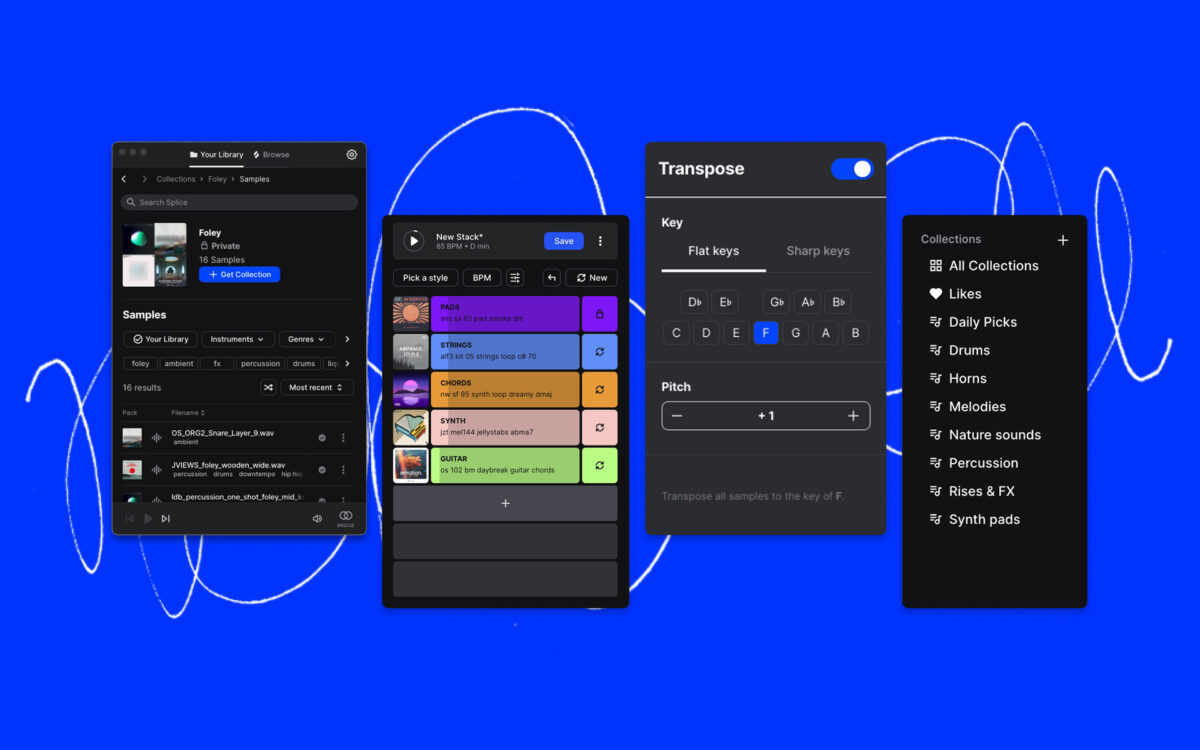
You can create and add to Collections from the left-hand sidebar on web or the Desktop app, or by clicking on the three dots beside any sample. Don’t worry if your Collection has a lot of samples; you have access to the same search and filtering features as you do when browsing the library. And if you want to share your Collection, simply hit the “Make Public” button, add a description, and then drop the link to your friends, followers, or collaborators.
Use Splice Desktop to power up your workflow
When you’re in the flow in your DAW, you might not want to have to open your web browser to look for sounds. You want to be able to grab sounds just as quickly as inspiration comes—and that’s where the Splice Desktop app comes in.
In Desktop, you’ll find most of the same features as on the Splice website—you can search for specific sounds, filter your results, and create and edit Collections. Most importantly, you can drag-and-drop samples into your DAW directly from Desktop, and you can also build Stacks from scratch or from a loop, as well as export them to your DAW.
Another thing that you can do in Desktop that you can’t do on web is take advantage of Splice’s Similar Sounds feature, which surfaces samples with similar sonic characteristics to the one you have selected. If you’re using plugins on our Rent-To-Own program, the Desktop app is also what keeps them activated and where you’ll update or reinstall plugins.
Audition sounds in your DAW with Bridge
A powerful combo is using Splice’s Bridge plugin alongside Desktop. Bridge lets you hear samples in the context of your current project to know if the vibe is right.
To use Bridge, first make sure it’s installed from the “Apps & Plugins” section in Splice Desktop. Then, load the plugin on a MIDI track in your DAW. Bridge will sync with the Desktop app and, once it’s connected, you’ll see the Bridge icon in the app go blue. Now, you can preview Splice loops in the key and tempo of your DAW project.
Once you download the sample in Desktop, a new button called “Copy modified sample” appears. This is where you grab your tempo- and key-matched sample, which you can then paste directly into your DAW. If you want the original, just go the old-fashioned way by grabbing the actual loop.
Supercharge your workflow with DAW integrations
If you’re an Ableton, Fender Studio Pro, or Pro Tools user, Splice also has direct DAW integrations that allow you to supercharge your workflow right within your workstation, without the need of the web, desktop app, or plugin experiences.
These integrations allow you to access some of Splice’s latest sound discovery tools like Search with Sound and Describe a Sound, in addition to a rotating selection of free samples. What’s more, you can audition and import sounds matched to your project’s key and tempo without using additional plugins like Bridge.
If you’re a user of any of these DAWs, their integrations will provide you the best Splice workflow experience—but if you’re not, we’ve also built something for you too in the form of the new Splice Sounds Plugin.
Bring Splice directly into any DAW with the Splice Sounds Plugin
While web and Desktop are powerful in their own right, the Splice Sounds Plugin is our latest tool that brings Splice directly into any DAW, unlocking a truly seamless experience.
With it, you can browse the full Sounds library, create your own unique variations of samples, audition loops in sync with your project, and also use discovery tools like Search with Sound and Describe a Sound which were previously only available via the DAW integrations.
The exclusive Variations feature is particularly powerful, letting you generate entirely new, one-of-a-kind loops derived from human-made samples in the library. To generate Variations, you have to first add the source sample to your library by using credits. Downloading a variation requires an additional credit spend, which compensates the original creator again. This ensures transparent compensation to the artists behind the sounds, even as new versions are built on their DNA, in your key and tempo—you can learn more here.
The Splice Sounds Plugin is free to install and constantly evolving—to try it out yourself, you can download the Mac installer here and the Windows installer here.
Access artist-made instruments with Splice INSTRUMENT
Splice has historically been best known for samples and loops—but that’s only part of the story. Splice INSTRUMENT puts an ever-growing collection of expressive, high-quality, and artist-made instruments right at your fingertips.
Splice INSTRUMENT is completely free to download, and comes with immediate access to hundreds of meticulously sampled presets. With a Creator, Creator+, or dedicated INSTRUMENT plan, you can also access all of its premium presets, which include the renowned Spitfire Audio Originals libraries, exclusive pianos from John Legend, and more.
Beyond its built-in instruments, INSTRUMENT gives you even more control and endless opportunities for sonic exploration via Craft, which lets you pull in any loop from your Splice Sounds library and transform it into a playable instrument with multiple variations. Be sure to also check in regularly for Free Drops, which are a rotating selection of premium presets that you’ll be able to download for free and keep forever, even if you’re not on a paid plan.
Expand your toolkit with Rent-to-Own
Rent-to-Own is our software marketplace that allows you to lease industry-leading plugins, software collections, and DAWs. With it, you can trial anything for free, and then pay small monthly installments until you own the plugin(s) or DAW outright—accessing it in full the whole time. You can pause payments at any time, and pick up right where you left off.
Some plugins and libraries on Rent-to-Own include Xfer Records’ Serum, Spitfire Audio’s BBC Symphony Orchestra Professional, XLN Audio’s RC-20 Retro Color, Arturia’s V Collection, iZotope’s Ozone, Yamaha’s VOCALOID, and more—just to name a few.
Kickstart an idea with Stacks
Stacks is Splice’s discovery feature that allows you to quickly start an idea with a Stack of compatible sounds.
There are three ways to build with Stacks:
- Directly via the Stacks page on web, where you can start with a style / genre, and then start swapping and adding new layers.
- With a specific loop from the Sounds library—on Desktop, you can hover over an eligible loop to reveal the “Build a Stack” icon, and the Stack will be built around that sound.
- With your own audio, by hitting “Start with your own loop” and selecting your desired audio file.
Once you have something you like, you can save your Stack to your Library. Stacks are intended to be starting points—to iterate on one further in your DAW, you can export it as a DAW project (Ableton Live and Studio One), as Stems (with all the samples pitched and stretched as you hear in the Stack), or as Original Samples, which gives you the samples in their original state.
Capture inspiration anywhere with Splice Mobile
Last but not least, with the Splice mobile app for iOS and Android, you have the power to browse the entire Splice catalog, organize your favorite sounds, discover hidden gems, and start countless new ideas with Stacks—right from your phone.
Whether you’re discovering new sounds or creating new loops, Splice Mobile seamlessly syncs with your Splice account. All of your ideas are waiting for you when you get back to the studio, and you can easily share Stacks and samples with collaborators as audio files through text, AirDrop, and your favorite cloud services.
Give us your feedback
And there you have it! We love hearing from you about which features you value the most. In Splice Desktop, you can submit feedback via the help menu in the top-right corner. If you’d like to give feedback specifically on Stacks, you can share your thoughts using the “Give Feedback” button. Otherwise, you can get in touch through our support pages.
Take your music further with the new plugins, fresh sounds, and more available in the Splice Creator plan:
December 20, 2023