.svg)
.svg)


Pro Tools is one of the first widely-used and most powerful digital audio workstations available today.
Initially developed by Avid Technology in the late ’80s, the software remains a standard for professionals while also being accessible to beginners.
With that said, even tools that were groundbreaking at their outset need to evolve alongside their users—enter Pro Tools Sketch. In this article, let’s explore this new view and uncover the fun we can have using some Splice samples along the way.
See the table of contents below to quickly navigate to a specific section.
What you’ll learn:
Let’s dive in!
What is Pro Tools Sketch?
Pro Tools Sketch is a clip-launching, loop-based view built for fast and non-linear workflows and flexible live sets.

An evolution from traditional workflows
Historically, Pro Tools has been associated with linear recording and editing at the highest level. Its traditional Edit view displays one cohesive project across a clean, time-based grid. Each vertical row represents an individual track, with waveforms and MIDI displayed from left to right.
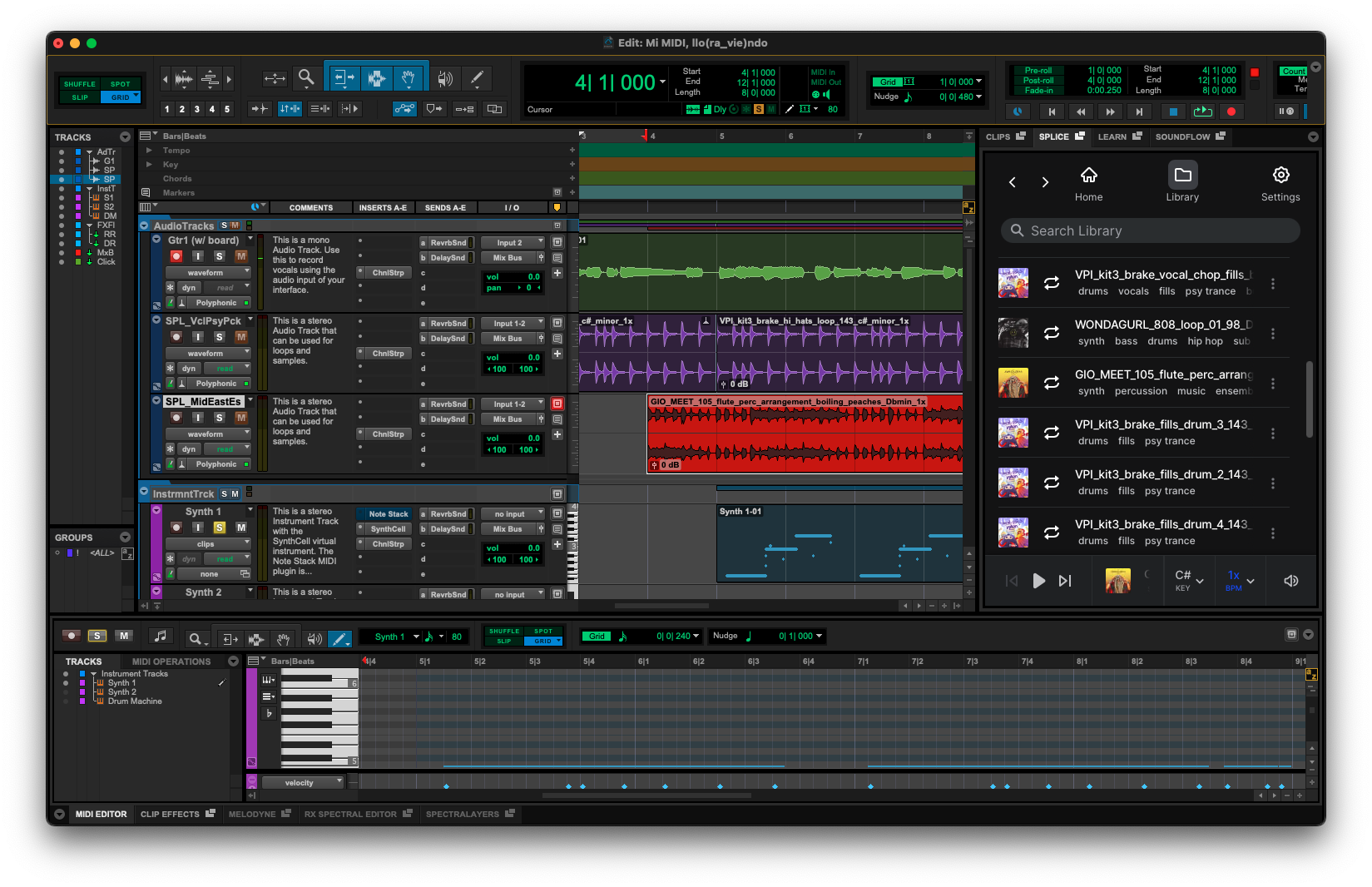
Of course, there’s far more beneath the surface. Keyboard shortcuts, routing strategies, and session management techniques such as templates are all essential for speeding up workflows and getting the most out of the DAW. Still, the foundational Edit view is a logical one also reflected in other popular DAWs like Logic Pro and FL Studio.
Pro Tools’ traditional layout also includes a Mix view. This mirrors the workflow of physical recording consoles and enables a powerful two-window workflow for recording, mixing, and mastering.
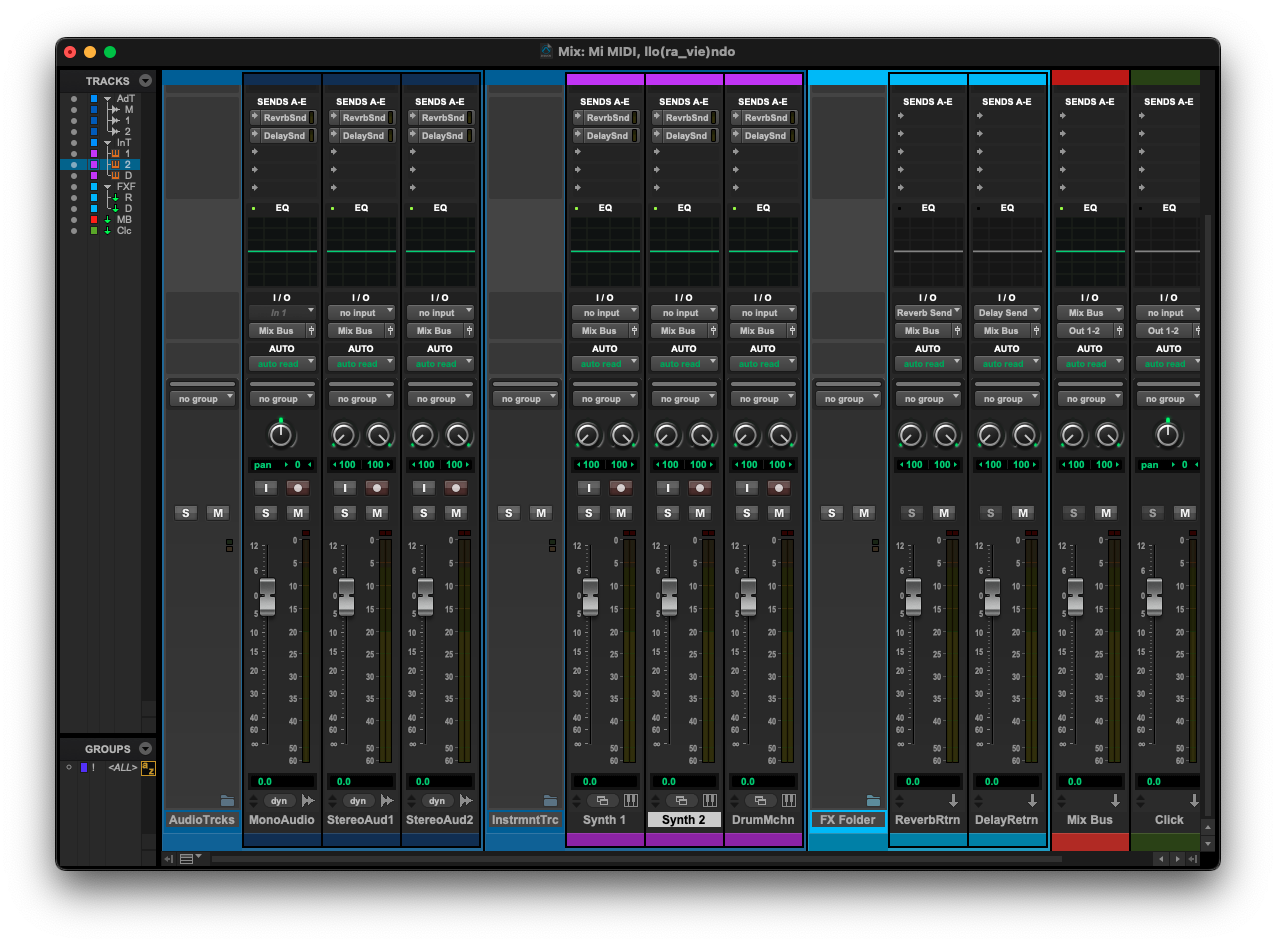
However, as more technology was developed over the years, so have new ways of organizing creative information. Producers yearned for new ways to experiment within a DAW, and DJ culture brought its use into live performance as well. Today, many artists across genres also use dynamic backing tracks on stage in some way.
Amidst these steps forward, Avid was posed with a challenge to navigate the line between tradition and evolution. In late 2023, they delivered on that with a brand-new, in-DAW view, with an entirely different file format and a standalone iPad app to pair with it.
How to use Pro Tools Sketch
Pro Tools Sketch introduces a clip-launching, loop-based workflow that allows you to experiment with ideas non-linearly and create song starters before committing anything to the main timeline.
To explore Sketch for the first time, launch the Pro Tools Dashboard and go to GETTING STARTED → Open Demo Sketch. A listen is worth a thousand words—in the video below, Avid uses this demo to break down how the Clip Launcher, Tabs, and Arrangement workflows function:
As shown above, the Edit view organizes audio as a single linear composition, with a separate window providing a mixing console. The Sketch view, by contrast, organizes music into:
- Sets of clips that can be launched individually or in combination.
- Tempo-synced cells that create a loop pedal-style production experience for both MIDI and audio.
- Flexible structures that encourage rapid idea building and recombination.
Overall, Pro Tools Sketch is about experimentation, allowing the workstation to collaborate with you rather than get in your way when inspiration is flowing. With Sketch, you can build out song sections a lot more dynamically, which could lead to results you might’ve not landed on without mixing and matching clips. You can also test how separate tracks transition between one another, whether you need to do so for a cohesive DJ set or you’re looking for a more intentional setlist with your band.
Once an idea feels good, you can move it into the traditional Pro Tools workflow by simply dragging your clips, scenes, or entire arrangements into the timeline for detailed editing and refinement. The Pin button on the top left of the Sketch interface also allows you to attach your Sketch to a Pro Tools session so that the two always open together, and the Sync button locks your Sketch’s tempo to your Pro Tools session tempo and transport control.
Some creators might choose to perform directly from Sketch view, while others will treat it as a launching pad for deeper production work. Either way, the process of arriving at a finished track becomes more fluid and exploratory.
Use Splice samples in Pro Tools Sketch
Now, it’s time we get practicing. While Pro Tools offers some built-in sounds, we dragged in samples from three distinct sample packs on Splice Sounds to have some fun. A number of samples from these packs were brought together, reshaped, and joined by some MIDI additions of our own, along with some stock samples from Pro Tools. Have a listen to some moments from the jam session:
To check out the samples we used, be sure to explore:
No matter your genre, sketching can open up new worlds. It might kickstart your next track, unearth unexpected strengths of your creative process, or simply serve as a fun change of pace from the hypnosis of the DAW.
Discover, build, and create with Splice—right inside Pro Tools:
March 26, 2026