.svg)
.svg)

Since launching the Splice Sounds marketplace in 2015, we’ve always known that we need to get even deeper inside the DAW.
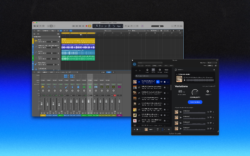
Bridge, the desktop app, and our integrations with specific DAWs like Pro Tools and Ableton are all powerful companions we’ve launched since, and now we’re excited to share our next step via the Splice Sounds Plugin. The plugin is compatible with any DAW that accepts VST or AU formats, and with it, you can browse the Sounds library in sync and in key with your project, use audio from your DAW to find compatible sounds, and most exciting of all, now generate variations of samples to find the perfect loop.
In the video above, Devon Johnson walks through tips for using these features and more—watch along to see the plugin in action, and read highlights below.
1. Install in minutes
To get started, simply download the Splice desktop app here (if you don’t have it already). Once it’s running, a splash screen will guide you through the installation. The process installs two components: the Splice Sounds Plugin and the Splice Sounds Listener (more on that below). If the splash screen doesn’t appear, you can also find the install option in the Apps & Plugins section of the desktop app or download the installer directly here.
Once you’ve completed the installation, you can load these plugins on any track in your DAW to start exploring the Sounds library.
2. Generate unique variations of any sample
Have you ever found a loop you like, but it’s not quite right? The new Variations feature lets you generate entirely new, one-of-a-kind loops derived from human-made samples in the library. Just set your desired key, adjust the Complexity knob to taste, and let it suggest a new set of loops. You can resize the plugin window for more working space, and when you find something you love, drag it straight into your DAW.
A key thing to note: To generate Variations, you have to first add the source sample to your library by using credits. Downloading a variation requires an additional credit spend, which compensates the original creator again. This ensures transparent compensation to the artists behind the sounds, even as new versions are built on their DNA, in your key and tempo—you can learn more here.
3. Search for sounds using natural language
Before, the primary ways to search for sounds on Splice were by browsing packs, using tags, or inputting technical terms like “vocals,” “synth leads,” or “drums” into the search bar. While you can continue to do these, our new Describe a sound beta feature also lets you describe what you’re looking for in plain language.
Try toggling the feature on within the Splice Sounds Plugin, and instead of typing “kick,” try “punchy kicks” or “soft kicks” and filter by one-shots, loops, or other categories. You can even search by mood or vibe. Mix this approach with traditional keyword searches to find exactly what you’re looking for with more speed and precision.
4. Find sounds that are tailored to your session
The second installed component—the Splice Sounds Listener plugin—is a game-changer for finding sounds that truly fit your arrangement, going beyond just BPM and key. Drop it on any track in your DAW, hit play, and it’ll analyze the audio and surface harmonically-matched sounds from the Splice library in real time. It’s a powerful way to find samples that fit a project you’ve already started working on.
5. Drag and drop directly into your DAW
Every sound—whether you’ve found it through search, the Splice Sounds Listener, or Variations—can be dragged directly from the plugin into your DAW. Removing the need for you to constantly switch windows or hunt through folders, the Splice Sounds Plugin allows your whole workflow to stay inside your session.
And there you have it! We’re excited to hear what you’ll create with the new Splice Sounds Plugin. What was your favorite feature or tip that we showcased? What else would you like to see us explore? Let us know in the comments section of the video, and join the Splice Discord to be a part of our ever-growing community of music creators.
Bring Splice directly into your DAW with the Sounds Plugin (beta):
April 15, 2026